How to launch an online store in a day: a checklist
An hour-by-hour checklist to launch an online store in one day: AI store builder, products, payments, shipping, policy pages, a test order and publishing.
The morebasket team ·

You can launch a small online store in a day if you prepare your products first and work through the tasks in order: describe the shop, add products, connect payments, set shipping, write policy pages, place a test order and publish. This checklist gives each task an hour.
A day works best for a small catalog. A larger one may need extra time for photos and data, but the order of tasks stays the same.
What should I prepare before the day starts?
Collect these the night before. They save most of the delays:
- A list of products with names, prices and a short description each.
- Photos, even basic ones. See product photos with a phone.
- A shop name. If you need ideas, read how to name your online store.
- Your payment account details, or time to create a Stripe or PayPal account.
- Your shipping prices and where you ship.
- Your return policy in a few sentences.
Hour 1: How do I create the store?
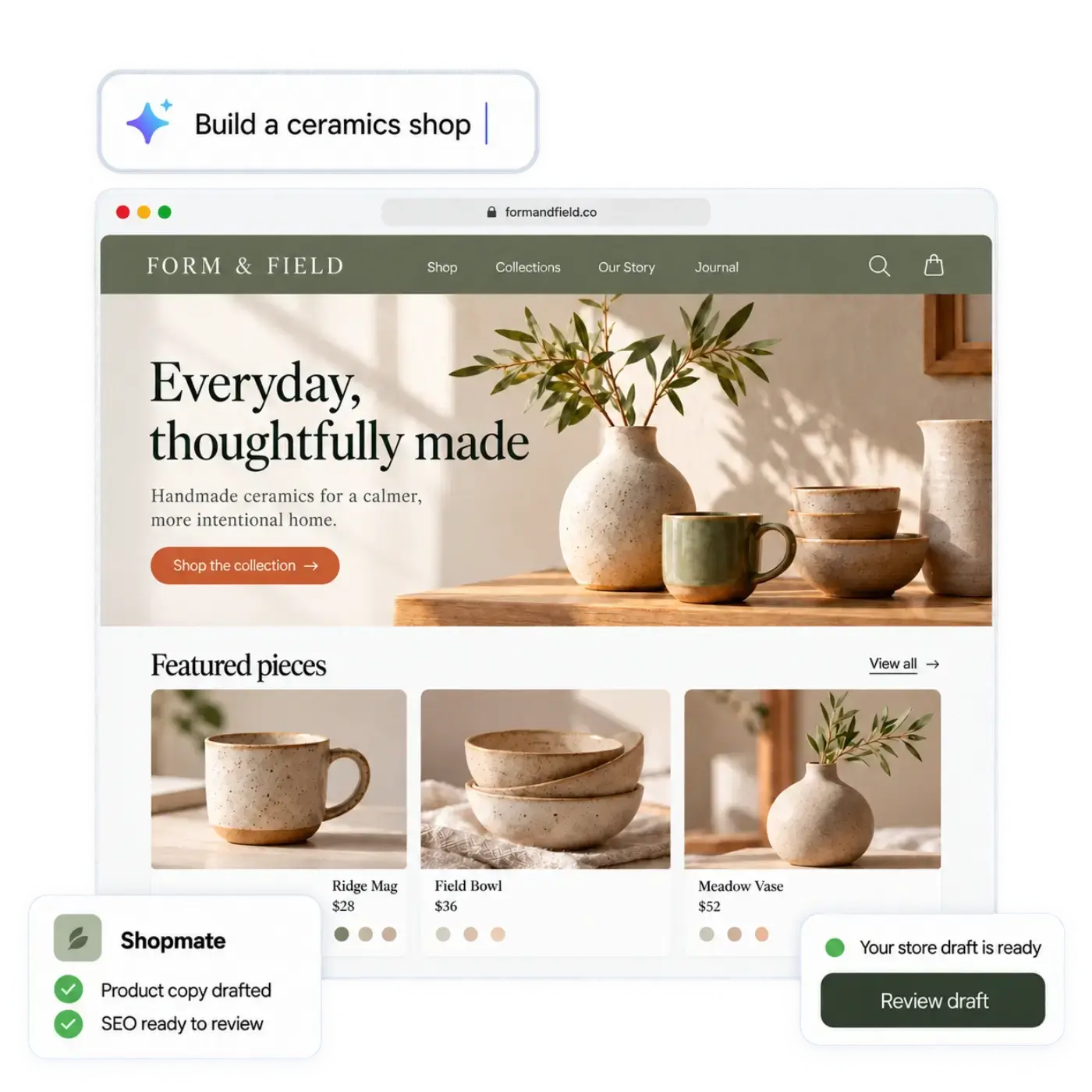
Sign up and create your store. Describe your shop in a sentence: what you sell, who it is for and the feel you want. The AI store builder drafts a design, page copy and an initial catalog from your description. You can also start from a spreadsheet of your products instead of, or as well as, a description. The CSV import in Products works on its own too: see how to import products from a CSV file.
Your store stays private until you publish it, so you can work through the next hours without anyone seeing it. Nothing is public until you publish, and design changes that you generate later for an existing store arrive as a draft that you publish yourself. Create your first store walks through this step in more detail.
Hour 2: How do I review and edit the draft?
AI can get things wrong, so read everything. Click through each page and check:
- Product names, prices and descriptions.
- The about page and the home page text.
- Anything the builder invented that is not true for your shop.
Change text by clicking, or ask Shopmate for a change in plain words. Shopmate edits a draft of your design: small edits apply right away and you can undo them with one click, while removals and big changes ask you to confirm first. Shopmate never publishes anything, so you decide when a change goes out. See Shopmate.
Hour 3: How do I add my products?
Fix or add products in the admin. For each one, add photos, a price, and variants and options such as size or color. Group products into collections so customers can browse. Set stock quantities. Details are in Products and Inventory.
Hour 4: How do I connect payments?
Connect your own Stripe or PayPal account. Payments go to your account, at your provider’s rates. Set your region and currency, and add tax regions for the places you sell to. If you are unsure about tax, ask an accountant. The full steps are in set up payments with Stripe or PayPal.
Hour 5: How do I set up shipping?
Create a stock location, a shipping profile and one or more shipping options. Start small: one option for your home country and one for other places, or a flat option. You can refine later. For digital products you can skip this. Read Shipping for the full set of tools.
Hour 6: Which policy pages do I need?
Write or review these pages:
- Shipping and delivery.
- Returns and refunds.
- Privacy policy.
- Terms of sale.
- Contact details.
Customers look for these before they buy. If you are not sure what the law requires where you sell, get advice from a professional. Set your return and refund reasons in the admin so your orders match your policy.
Hour 7: How do I place a test order?
Buy from your own store the way a customer would. Use your payment provider’s test mode, or a small real order that you refund. Then check:
- The product page, variant choice and add to cart.
- The shipping price at checkout.
- Payment and the confirmation page.
- The order in your Orders list: payment, fulfilment and customer details.
Try it on a phone as well as a computer.
Hour 8: How do I go live?
Switch your payment provider to live mode, review the home page one last time and publish your store, along with any design draft you have been working on. Until you publish, the store stays private, so this is the moment it opens to customers. On the Starter plan, your store has a morebasket address. If you want your own domain, that is part of the Pro plan; see the pricing page.
Then tell people. Share the link with friends and on your social accounts. If you want your products on Google and Meta, read send your products to Google and Meta.
A one-page checklist
| Hour | Task | Done when |
|---|---|---|
| 1 | Create the store with the AI store builder | You have a first draft to edit |
| 2 | Review and edit | Text and facts are right |
| 3 | Products and stock | Every product has price, photo, stock |
| 4 | Payments | Test payment works |
| 5 | Shipping | Checkout shows a shipping price |
| 6 | Policy pages | Five pages written |
| 7 | Test order | Order appears in Orders |
| 8 | Publish and share | The store is published and the link is out |
What if I run out of time?
Go live with fewer products. Ten good products beat fifty rushed ones. You can add more tomorrow, and the policy pages and payments are the parts you cannot skip.
Next step
Prepare your product list and photos tonight, then block a day. When you are ready, start with the AI store builder and see which plan fits on the pricing page.