Create your first store with morebasket
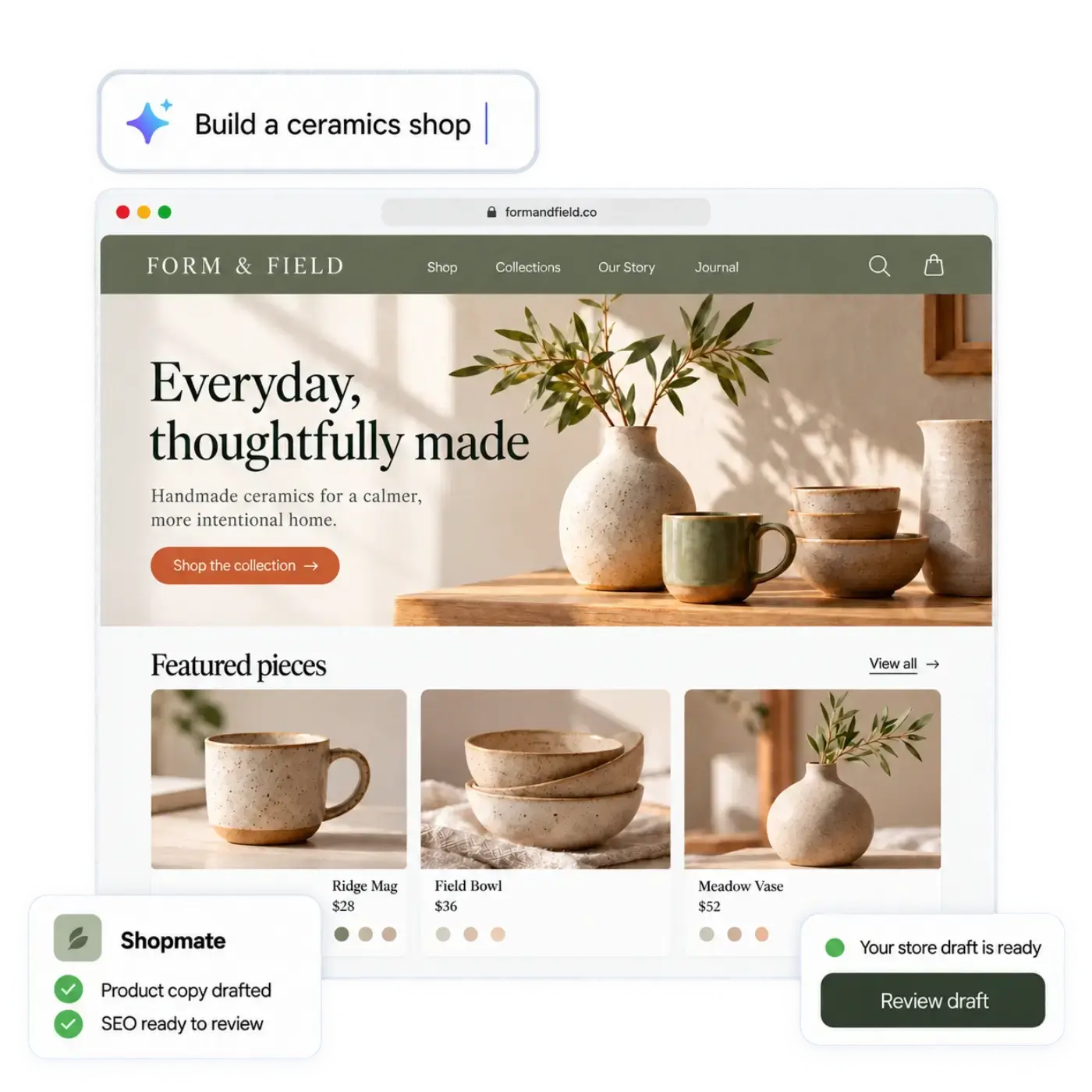
Describe your shop, review the store the AI store builder drafts, edit it by clicking or asking Shopmate, add products, connect payments and publish.
The morebasket team ·

To create your first store in morebasket, describe your shop in a sentence, or start from a spreadsheet of your products, and the AI store builder drafts a design, page copy and a starting catalog. Review it, edit by clicking or by asking Shopmate, add your products, connect payments and shipping, then publish your design. Your store stays private until you publish it, so you can work through the checklist below at your own pace.
What do I need before I start?
You can begin with very little. A few things make the first hour smoother.
- One sentence about what you sell, where, and who it is for.
- Photos of a few products. Phone photos are fine, and this guide shows how to take them.
- A rough idea of your prices.
- A Stripe or PayPal account, or the plan to open one.
- A name for your shop. If you need one, read how to name your online store.
How do I describe my shop?
On the home page, type what you sell into the box and press Enter. For example: “natural skincare from Portland for people with sensitive skin”. Then follow the sign-up steps.
More detail gives the builder more to work with. Mention your products, your location and your customers. You can also start from a spreadsheet of your products instead of, or alongside, a description. If your catalog already lives in a spreadsheet, you can also import it into Products on its own with the CSV import. See how to import products from a CSV file.
What does the AI store builder make?
The AI store builder drafts a design layout, the copy for your pages and an initial catalog, all in minutes. It is a first draft, and AI can get things wrong, so plan to read everything.
| The builder drafts | You check |
|---|---|
| Design and page layout | Does it look like your brand? |
| Copy for your pages | Is every claim true for your shop? |
| A starting catalog | Are the products, names and details right? |
Look through each page as a customer would. Nothing is final, and your store stays private until you publish it, so take your time with this review.
How do I edit my store?
You have two ways to change anything, and you can mix them.
Click and edit. Select text, an image or a section and change it directly. This is quickest for small fixes.
Ask Shopmate. Shopmate is the assistant in morebasket. Tell it what to change in plain words, such as “make the headline shorter” or “add a section about shipping”. Shopmate changes a draft of your design. Small edits apply right away, and you can undo one with a click. If you ask to remove something, or make a big change, Shopmate asks you to confirm first. Changes to your products or promotions arrive as suggestion cards that you apply. If the result is not right, undo it or ask for something different. Our guide to meeting Shopmate has more example requests.
Shopmate also works inside your admin, to help run the shop once it is open. It can help with product copy, collections, discounts, images and a plain sales report, and it never publishes for you.
How do I add my products?
Replace the draft products with your own. For each one, add a name, photos, a description, a price and any options such as size or color.
- Add one by one if you have a small range.
- Import a CSV if your products already live in a spreadsheet or another platform.
- Use variants for sizes and colors. See how to sell products with variants.
Descriptions take time. You can use AI to write product descriptions, then edit them so they sound like you. Check the stock numbers too, which Inventory tracks for you.
How do I connect payments?
Connect Stripe or PayPal using your own account. Each store connects its own, so money goes to you. You pay your provider’s rates. Add a region for each place you sell to, add your tax regions, and place a test order. The full steps are in how to set up payments.
Start this early. Your provider may ask for identity and bank details, and that check can take a while.
How do I set up shipping?
Add the place you ship from, group your products into shipping profiles and create the shipping options customers will see. You can set your own fixed options, show carrier rates through Shippo, or fulfil orders by hand. Our guide to setting up shipping rates covers each step, and the Shipping page lists what is supported.
How do I go live?
Before you publish your store, run this checklist:
- Read every page once, on a phone and on a computer.
- Check each product has a photo, a price and a description.
- Place a test order from start to finish.
- Check your shipping options and payment connection.
- Add your policies for returns and delivery.
When you are happy, publish your store and share the link. Until then, nothing is public. Your store is reached at your morebasket address, and the plan list says you can add your own domain on the Pro plan. See the pricing page for what each plan includes.
After you publish, you can still change anything. Edit your design as a draft, check it, and publish again.
Which mistakes should I avoid?
- Publishing the draft text as it is. The builder writes a starting point, not your final words.
- Publishing with sample products. Replace or delete them first.
- Skipping the test order. It finds problems before customers do.
- Waiting to connect payments. Verification can take time.
Next step
Open morebasket, type one sentence about your shop and read the first draft. Then connect payments and add three real products. That is enough to place a test order. If you want a tighter plan for the day, read launch your store in a day.