How to move your store from Shopify to morebasket
A step-by-step guide to moving a Shopify store: export products as a CSV, import, rebuild pages, connect Stripe or PayPal, test, then switch your domain.
The morebasket team ·

To move from Shopify to morebasket, export your products from Shopify as a CSV, import the file into morebasket, rebuild your pages with the AI store builder or by hand, connect your own Stripe or PayPal account, set up shipping, test an order, then point your domain at the new store.
Not everything moves by file. This guide says what to expect so you can plan a calm switch.
What moves automatically and what do I rebuild?
Be clear on this before you start.
Moves with a CSV: your product data, such as titles, descriptions, prices, variants and options, as far as the file columns match. See import products from a CSV file.
You rebuild by hand:
- Your theme and page layouts (the AI store builder drafts these for you).
- Navigation and policy pages.
- Discount codes, which you recreate as promotions.
- Shipping rules and payment settings.
- Apps and their settings.
- Customer and order history, unless you recreate the records you need. Keep your Shopify exports for your own records.
We do not claim an automatic migration. Plan for a manual rebuild of anything outside the product file.
Step 1: Export your products from Shopify
In your Shopify admin, open Products and use the export option to download a CSV of all products. Keep this file as a backup. Also export orders and customers if you want a copy for your records.
Open the CSV in a spreadsheet and remove products you no longer sell. Clean data now saves checking later.
Step 2: Create your morebasket store
Sign up and create a store. Your store stays private until you publish it, so you can build and test in peace while your Shopify store keeps selling. Nothing is public until you publish. If you have not made a store yet, read create your first store.
Step 3: Import your products
Import the CSV into morebasket. Start with a few rows to confirm columns map correctly, then import the full file. After the import, open several products and check titles, prices, variants and images. The Products page describes variants, options, collections and import and export.
Step 4: Rebuild your pages with the AI store builder
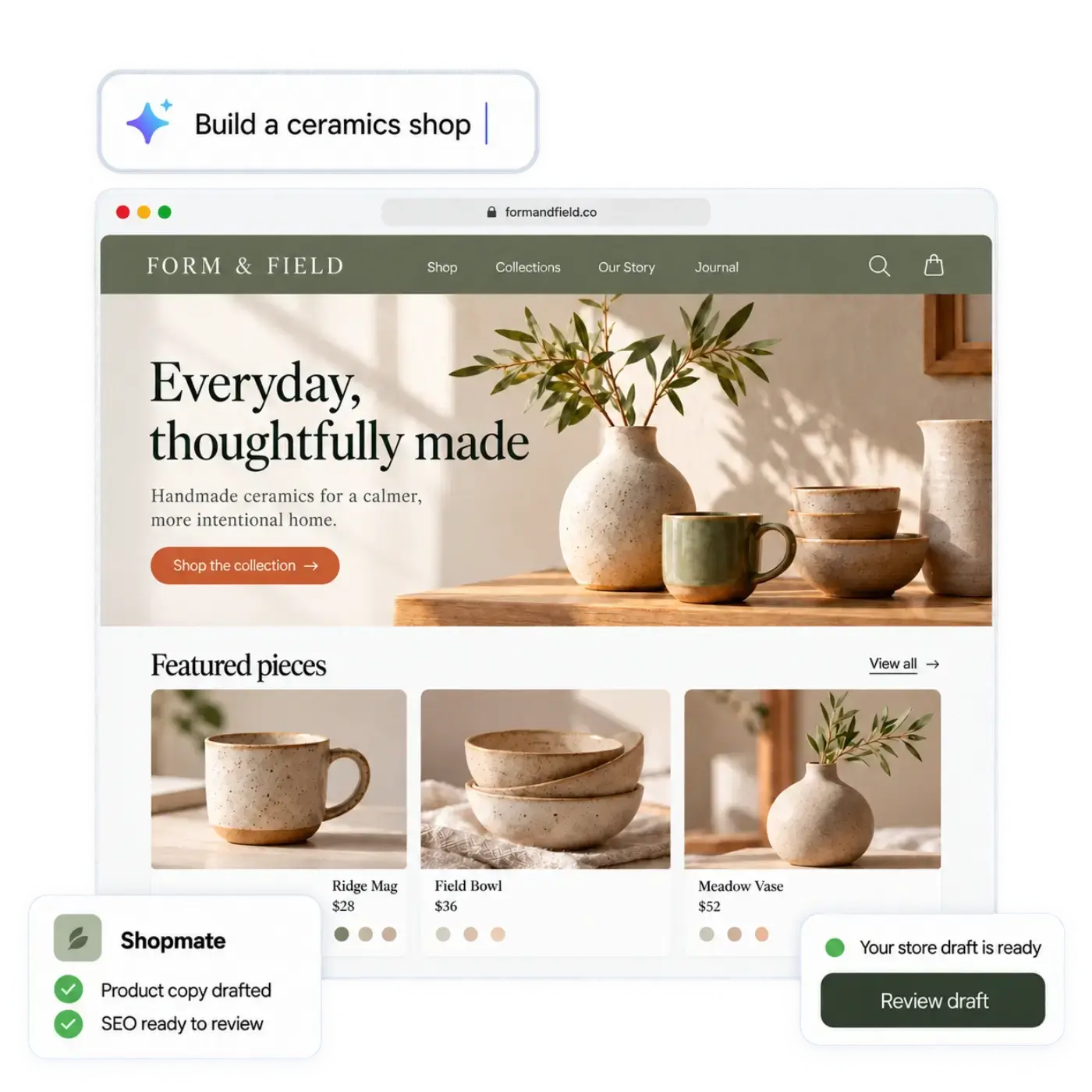
Use the AI store builder to draft your design and page copy. Describe your shop in your own words, or start from a spreadsheet of your products, and it drafts a design, the copy and an initial catalog. If you already imported your products in step 3, the CSV import also works on its own in Products, so you can use the builder for the pages and keep your imported catalog. You can edit anything by clicking or by asking Shopmate. Shopmate changes a draft of your design and never publishes it, so you stay in charge of what goes live. Small edits apply right away with Undo one click away, and removing something or making a big change asks you to confirm.
Rebuild these pages first: home, about, contact, shipping and returns, privacy and terms. Re-use your existing policy text if it still applies, and check it for accuracy.
Step 5: Connect your own Stripe or PayPal
Connect your payment account, then set your regions, currencies and tax regions. Money goes to your own account, at your provider’s rates. If you already have a Stripe or PayPal account, check with your provider whether you can use it for the new store, and connect the account you want paid. The steps are in set up payments with Stripe or PayPal.
Step 6: Set up shipping
Create stock locations, shipping profiles and shipping options. If you use carriers, rate shopping runs through Shippo across the carrier accounts you have connected there. See Shipping. Add your stock levels in Inventory.
Step 7: Test everything
Place a test order the way a customer would. Check:
- Product pages, variants and images.
- Cart and shipping prices.
- Payment in test mode.
- The order confirmation and the order in your Orders list.
- Mobile and desktop views.
Fix what you find, then place a second test.
Step 8: Switch your domain
The plan list puts using your own domain on the Pro plan. In general, a domain move has two parts: add the domain to the new store, then update the DNS records at your registrar to the values you are given. Publish your store first, when you are happy with your private build and your tests. Then switch the domain, since your customers will see the new store as soon as the change takes effect. Keep your Shopify store active until the new one takes a real order, then close it on your own schedule. DNS changes can take some time to spread, so pick a quiet hour.
How long will the move take?
For a small catalog, you can import products and draft the pages in a day. Allow more time for payments, shipping, policies and testing. Do not rush the domain switch. A good pace is to build and test the new store privately while the old one keeps selling, then publish and switch the domain when you are confident. If you run into a problem with the import file, go back to your Shopify export, fix the columns and import again with a few rows first.
Can I get help moving?
Yes. The Business plan includes help moving from another platform, plus priority support. See the pricing page for what each plan includes.
What should I do about my Shopify store while I move?
Leave it selling. Customers should have one place to buy at any moment, so do not take your old store down until the new one has taken a real order. Before you cancel, download one last export of products, orders and customers, and keep your policy pages and any email addresses you rely on. If you use a domain bought through Shopify, check with them how to transfer it or point it elsewhere, since the rules depend on the registrar.
A quick checklist
- Export products (and orders and customers for your records).
- Create your morebasket store, which stays private until you publish it.
- Import products, check a sample.
- Rebuild pages and policies.
- Connect Stripe or PayPal.
- Set shipping and stock.
- Place test orders.
- Publish the store, then switch the domain once a real test order works.
For a feature-by-feature view, see the morebasket and Shopify comparison. If you are still deciding, read Shopify alternatives.
Next step
Export your products from Shopify today and keep the file safe. Then create a morebasket store and import a few rows to see how your data lands.